Team names, pictures and products
Team names
Make one DST file per name, for a team, a club or a class, with the rest of the design unchanged.
- Design it once with one name as lettering, and select that lettering.
- File › Team names… (or Team names… in Properties).
- Paste the names, one per line, for example from a spreadsheet. Write
/inside a name to break it onto two lines. - Click a name to see it on the canvas. This really retypes the lettering in your design.
- Under Files, choose the folder and the start of the file names. Files are named like
club_01_Sarah_Tremblay.dst. - Click Export N DST files.
Tracing a background picture
File › Background picture to trace… puts a logo scan or photo (PNG, JPG, BMP, WebP or GIF) under the design so you can draw over it. It is never sewn.
In the Background picture section on the right:
- Width / Height: measure the real logo or patch and enter its size, so your tracing comes out at the right size. Proportions are kept.
- Left / Top and Centre in hoop to place it.
- Strength: how strongly it shows. Show hides it to check the stitches alone.
- Replace… picks another picture, Remove takes it away.
Showing the design on a product
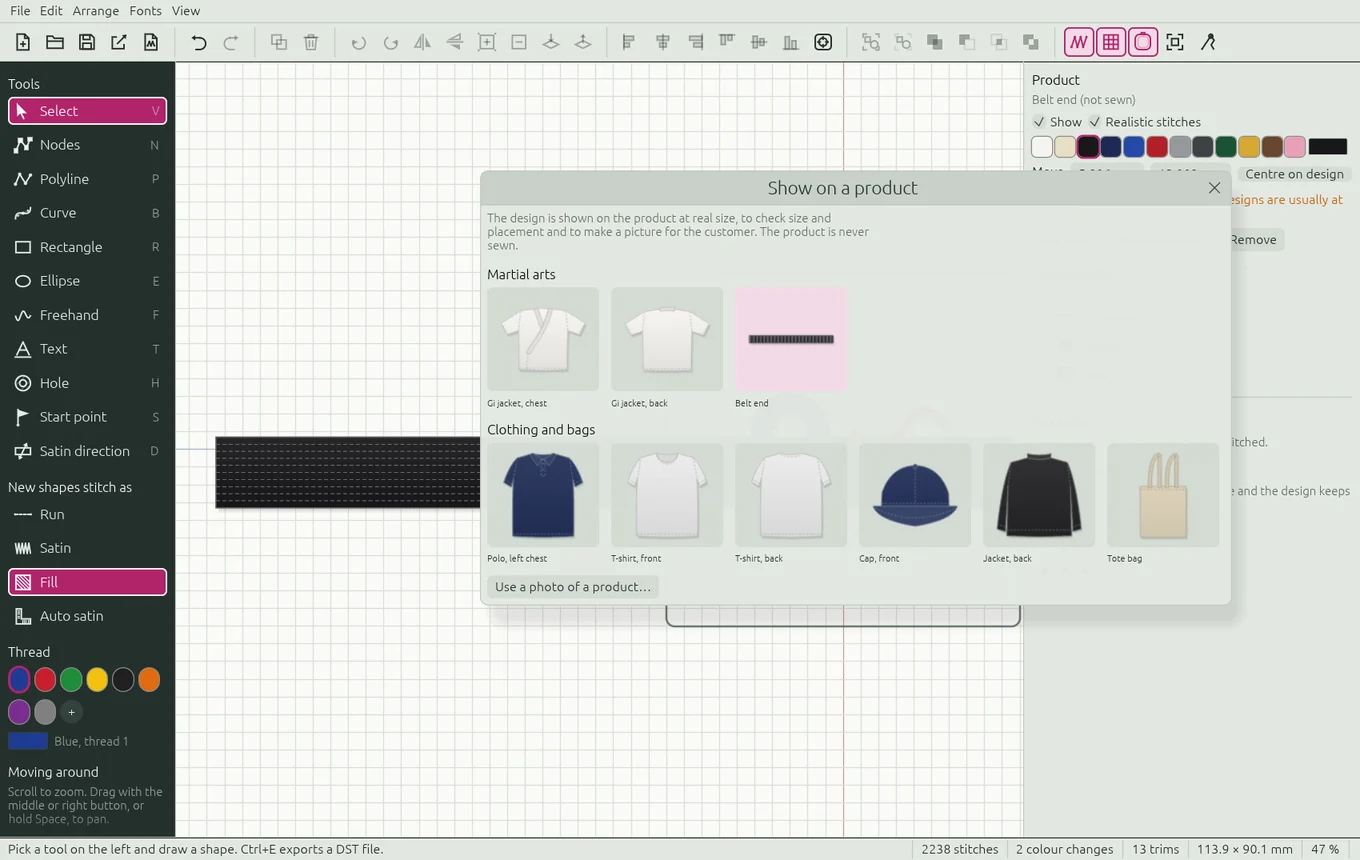
File › Show on a product… shows the design at real size on a garment, to check its size and placement and to make a picture for the customer. The product is never sewn.
| Product | Designs up to about |
|---|---|
| Gi jacket, chest | 100 × 100 mm |
| Gi jacket, back | 300 × 300 mm |
| Belt end | 150 × 32 mm |
| Polo, left chest | 100 × 100 mm |
| T-shirt, front | 280 × 300 mm |
| T-shirt, back | 300 × 350 mm |
| Cap, front | 110 × 55 mm |
| Jacket, back | 300 × 300 mm |
| Tote bag | 250 × 250 mm |
Products are drawn at adult size M. Use a photo of a product… uses a photo of a real garment instead; then enter its Real width (measure the chest, for example) so the design shows at the right size.
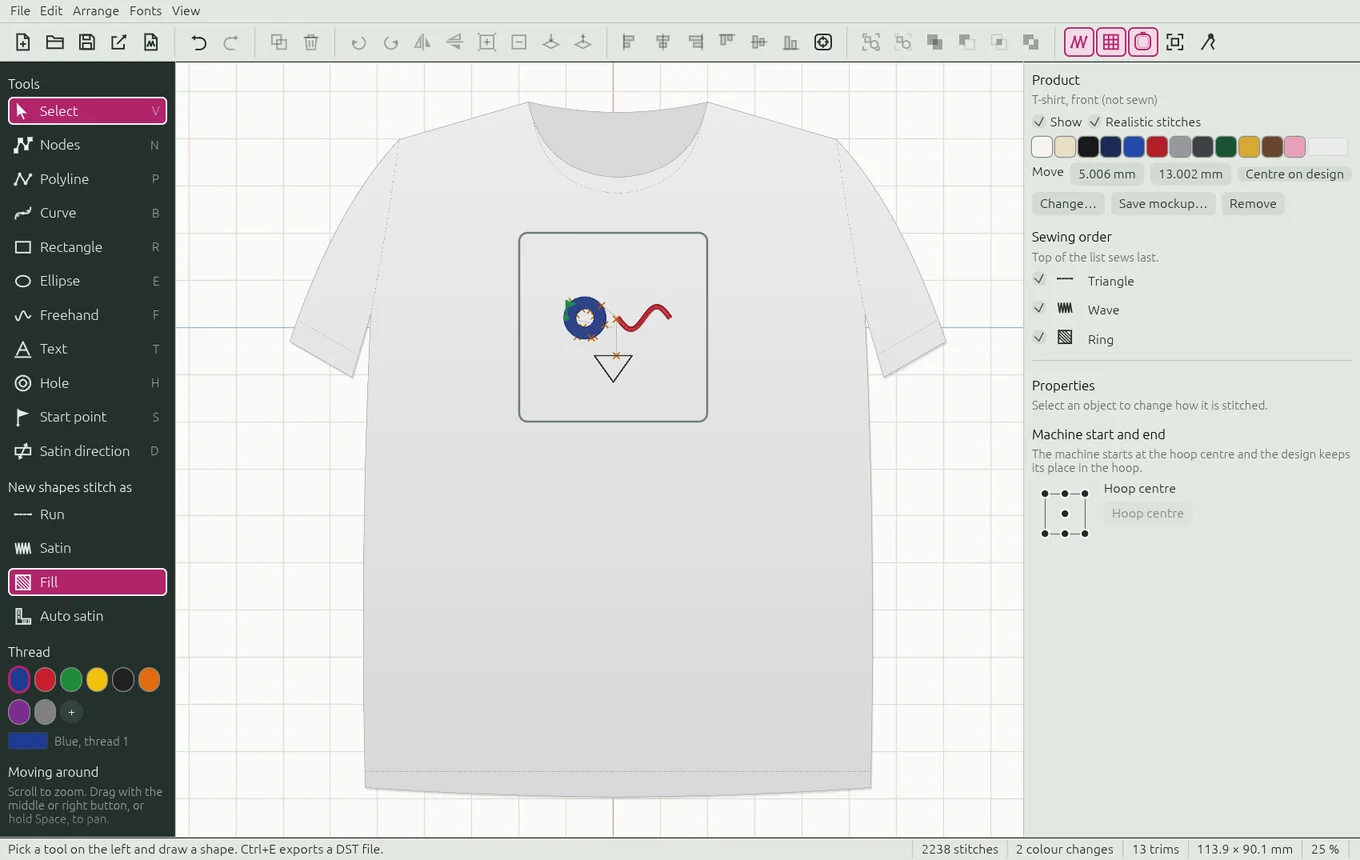
In the Product section on the right: pick one of 12 colours or any other, move the product under the design (Centre on design puts it back), turn Realistic stitches on or off, Change… or Remove the product. A warning appears if the design is bigger than usual for that product.
Mockup picture for the customer
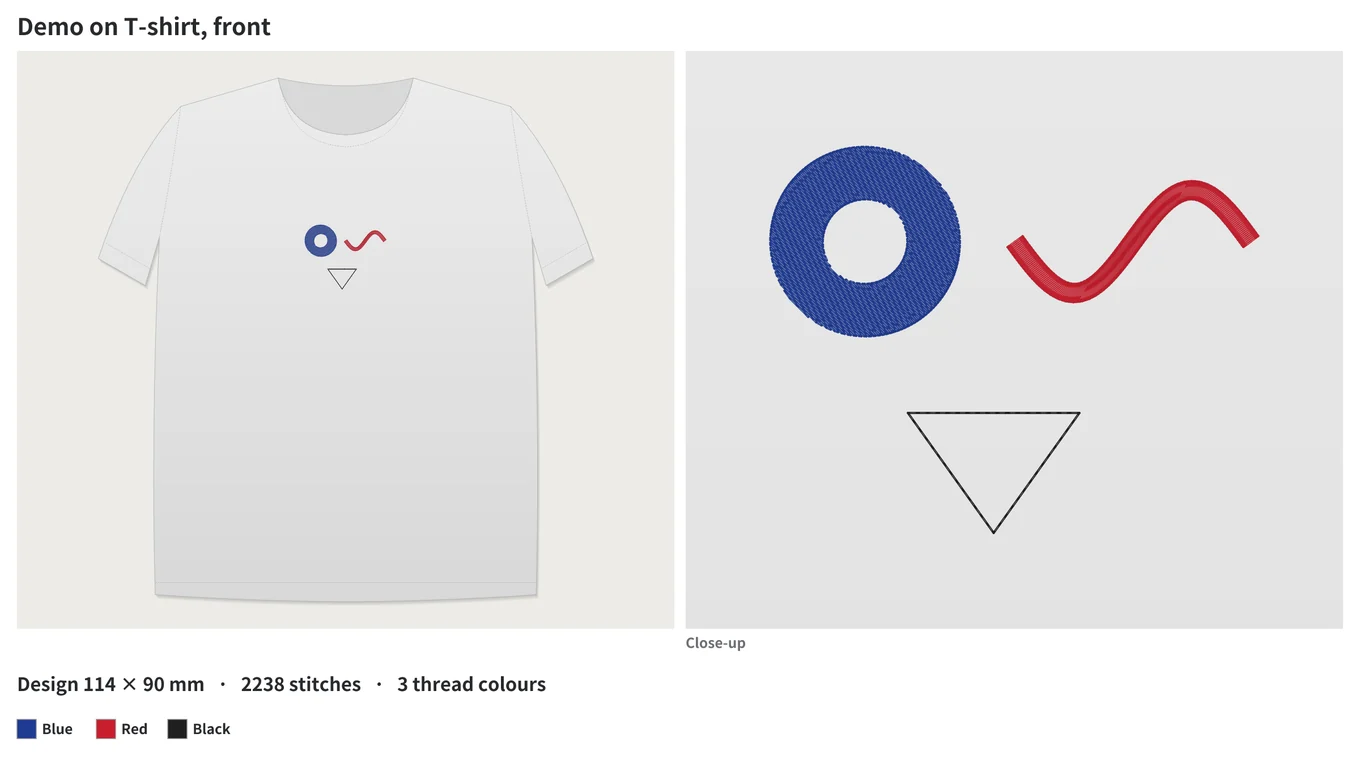
Save mockup… (or File › Save mockup picture…) saves a PNG with the design on the product, a close-up, its size, stitch count and thread colours, ready to send for approval.
Noms d'équipe, images et produits
Noms d'équipe
Créez un fichier DST par nom, pour une équipe, un club ou une classe, avec le reste du motif inchangé.
- Faites le motif une fois avec un nom en lettrage, et sélectionnez ce lettrage.
- File › Team names… (ou Team names… dans Properties).
- Collez les noms, un par ligne, par exemple depuis un tableur. Écrivez
/dans un nom pour le couper sur deux lignes. - Cliquez un nom pour le voir sur le canevas. Cela retape vraiment le lettrage de votre motif.
- Sous Files, choisissez le dossier et le début des noms de fichiers. Les fichiers sont nommés comme
club_01_Sarah_Tremblay.dst. - Cliquez Export N DST files.
Décalquer une image de fond
File › Background picture to trace… place un logo numérisé ou une photo (PNG, JPG, BMP, WebP ou GIF) sous le motif pour dessiner par-dessus. Elle n'est jamais brodée.
Dans la section Background picture à droite :
- Width / Height : mesurez le vrai logo ou écusson et entrez sa taille, pour que le tracé soit à la bonne taille. Les proportions sont gardées.
- Left / Top et Centre in hoop pour la placer.
- Strength : son intensité. Show la cache pour voir les points seuls.
- Replace… choisit une autre image, Remove l'enlève.
Voir le motif sur un produit
File › Show on a product… montre le motif en taille réelle sur un vêtement, pour vérifier sa taille et son emplacement et faire une image pour le client. Le produit n'est jamais brodé.
| Produit | Motifs jusqu'à environ |
|---|---|
| Veste de gi, poitrine | 100 × 100 mm |
| Veste de gi, dos | 300 × 300 mm |
| Bout de ceinture | 150 × 32 mm |
| Polo, poitrine gauche | 100 × 100 mm |
| T-shirt, devant | 280 × 300 mm |
| T-shirt, dos | 300 × 350 mm |
| Casquette, devant | 110 × 55 mm |
| Manteau, dos | 300 × 300 mm |
| Sac fourre-tout | 250 × 250 mm |
Les produits sont dessinés en taille adulte M. Use a photo of a product… utilise plutôt la photo d'un vrai vêtement; entrez ensuite sa Real width (largeur réelle, par exemple la poitrine) pour que le motif s'affiche à la bonne taille.
Dans la section Product à droite : choisissez une des 12 couleurs ou n'importe quelle autre, déplacez le produit sous le motif (Centre on design le remet en place), activez ou non Realistic stitches (points réalistes), Change… ou Remove le produit. Un avertissement apparaît si le motif est plus grand que d'habitude pour ce produit.
Maquette pour le client
Save mockup… (ou File › Save mockup picture…) enregistre une image PNG du motif sur le produit, avec un gros plan, sa taille, son nombre de points et les couleurs de fil, prête à envoyer pour approbation.